Introduction

Welcome to the fourth and final installment of my “How To Build A Data Pipeline” series. In this post, we’ll explore how to use Microsoft Power BI to transform the data we’ve collected and processed in our pipeline into compelling visual stories. Power BI is a powerful business analytics tool that allows you to connect to various data sources, prepare data, and create interactive visualizations and reports.
I will just introduce Power BI basically to help you easily understand the way Power BI works. When working in a real environment, it needs domain knowledge and an analytical mindset in business. Each domain will have different data and ways to analyze it. I am lucky to have had the opportunity to work with many domains during 2 years: logistics, insurance, sales, marketing, customer support, finance (with auditors), etc. Also, in some cases you can work with internal business data. This depends on each company, for example data about employee information, check-in/out, payroll, etc. Hopefully, with my experience, I can help you understand how to analyze data in Power BI. Now, let’s go.
Data Connection and Preparation
The first step in using Power BI is connecting to your data sources. Power BI offers a wide range of connectors, allowing you to import data from databases, cloud services, files, and more. In our case, we’ll be connecting to the output of our data pipeline.
- Open Power BI Desktop and click on “Get Data”.
- Choose the appropriate connector based on where your processed data is stored (e.g. PostgreSQL, MongoDB, Azure SQL, Snowflake, etc
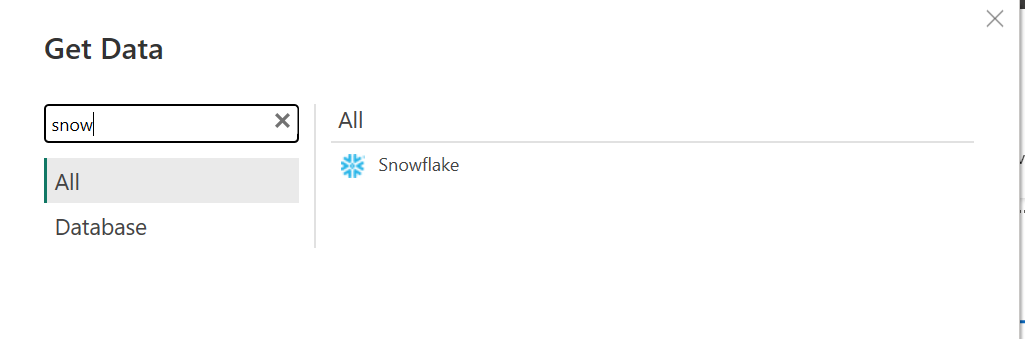
- Enter the necessary credentials and select the tables or files you want to import.
In the past, I also worked with MySQL, PostgreSQL and MongoDB. With MongoDB you need to connect via ODBC (Open Database Connectivity). Power BI does not natively support MongoDB because they use different data structures and query languages. MongoDB stores data in a JSON-like format and uses a non-SQL query language, while Power BI is designed to work with SQL-based data sources.
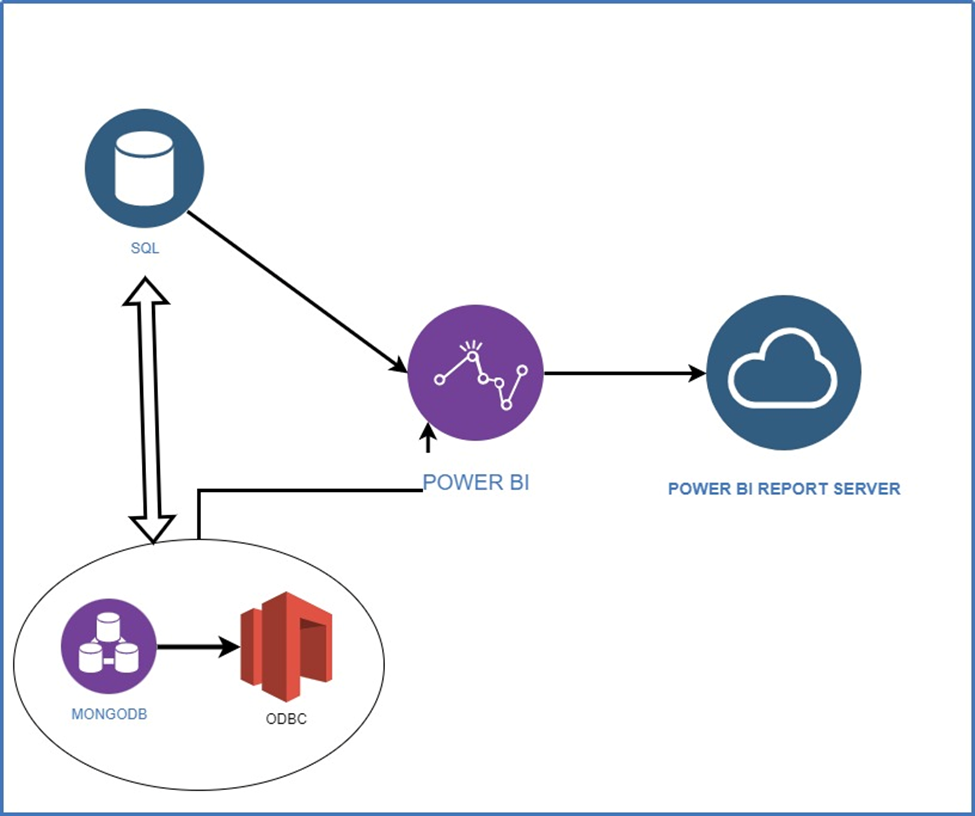 In this post, I will focus on Snowflake as data warehouse. Once your data is imported, it’s time for some final touches in data preparation:
- Use the Query Editor to clean and transform your data if necessary. However, you should handle all ETL process in DBT instead of using Query Editor for this.
- Create relationships between different tables. This is an important steps. In DBT, I recommend you to build data model follow The Dimensional Model Techniques (DMT). I will talk this more detail in next segment.
- Add calculated columns or measures using DAX (Data Analysis Expressions) for more complex simple calculations. As I mentioned, you should handle all ETL process in DBT. To simplicity and optimizing, let’s use DBT to ETL and Power BI only to visualize data by drag and drop.
Dimensional Modeling Techniques (DMT)
Dimensional modeling is part of the Business Dimensional Lifecycle methodology developed by Ralph Kimball which includes a set of methods, techniques and concepts for use in data warehouse design.
Fact and dimension tables
Dimensional modeling always uses the concepts of facts (measures), and dimensions (context). Facts are typically (but not always) numeric values that can be aggregated, and dimensions are groups of hierarchies and descriptors that define the facts.
In the simplest version fact table is a central table and is linked to dimensional tables with foreign keys creating a star schema. Star schema with dimensional tables linking to more dimensional tables are called snowflake schemas, multi fact tables schemas are called galaxies.
Why is it worth using dimensional modeling
- Dimensional Modeling has a few flavors, but the overall design is industry standard and has been used successfully for decades
- The FACT and DIM structures result in easy to understand and access data, suitable for business teams
- Dimensional modeling supports centralized implementation of business logic and consistent definitions across business users e.g. one source of truth of customer definition
- The design supports ‘plug and play’ of new subject areas and in fact the model grows in power as more dimensions are added
Naming Standards in EDM
It is critical to be intentional when organizing a self-service data environment, starting with naming conventions. The goal is to make navigating the data warehouse easy for beginner, intermediate, and advanced users. We make this possible by following these best practices:
- Base Tables:
base_<subject>- Used for renaming, type casting, and JSON parsing. - Stage Tables:
stg_<subject>- For cleaning raw data and preparing it for dimensional analysis. - Fact Tables:
fct_<verb>- Represent events or processes (e.g., sessions, transactions). - Dimension Tables:
dim_<noun>- Provide descriptive context to facts (e.g., customers, employees). - Mart Tables:
mart_<subject>- Join dimension and fact tables with minimal filters and aggregations. - Report Tables:
rpt_<subject>- Built on top of other tables with specific filters for narrow reporting purposes. - Pump Tables:
pump_<subject>- Used for models that will be piped into third-party tools. - Map Tables:
map_<subjects>- Maintain one-to-one relationships between data from different sources. - Bridge Tables:
bdg_<subjects>- Maintain many-to-many relationships between data from different sources. See the Kimball Group’s documentation for tips on how to build bridge tables.
Keys for fact tables
- Primary Keys:
- Can be a surrogate key, natural key, or composite key.
- Should be the first column in the fact table.
- Name as table name minus
fct_prefix, plus_pksuffix.
- Foreign Keys:
- Include a
--Foreign Keyscomment section. - Use hashed surrogate keys from dimensions.
- Implement
get_keyed_nullsmacro to handle missing members.
- Include a
Keys for dimension tables
- Surrogate Keys:
- Use
dbt_utils.generate_surrogate_keymacro to create a unique identifier. - Place as the first column in the table.
- Add a
--Surrogate Keycomment for easy identification.
- Use
- Natural Keys:
- Include keys from the source system.
- Can be single-field or composite.
- Place as the second column(s) in the table.
- Add a
--Natural Keycomment.
- Missing Member Values:
- Implement for all dimensions.
- Use
dbt_utils.generate_surrogate_keyfor missing member key generation.
Testing and Documentation
- Models are tested and documented in a schema.yml file in the same directory as the models
Slowly Changing Dimensions & Snapshots
Data analysis typically employs two perspectives: current and historical. The current view uses the most recent dimension values to analyze facts, while the historical view examines data as it existed in the past, when dimension values may have differed.
Three dimension types accommodate these perspectives:
- Type 1: Dimension values are overwritten when they are updated. This provides a current-state view of the data with no historical context.
- Type 2: Dimension values are added as they are updated. Dates (
valid_fromandvalid_to) are associated with each record in the dimension to indicate when the value was actively used in the source data. Using these dates, we can look back to how the universe looked at a previous state in time. This is what we call a slowly changing dimension. - Type 3: Dimension values are overwritten as in Type 1 slowly changing dimensions, but there is an additional field for an
Alternate Categorywhich can allow users to slice the data by an alternative version of a dimension. This type of dimension in not currently used in the Dimensional Model.
SCDs are particularly valuable when combined with snapshot tables, which display an object’s history from creation to the present. This allows analysts to track changes over time, such as an opportunity’s progression through various states.
Creating Visualizations and Building Dashboards/Reports
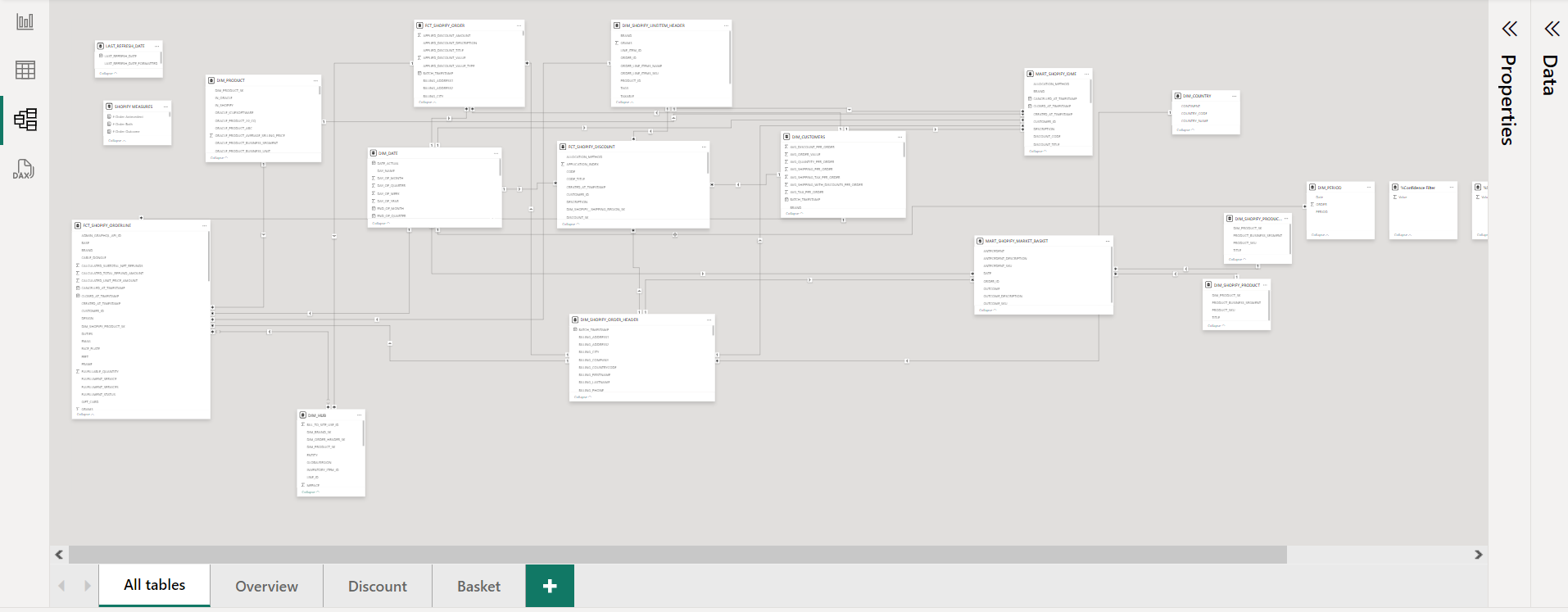
Now comes the exciting part - bringing your data to life through visualizations. Power BI offers a variety of chart types and customization options. Here are some tips for creating effective visualizations:
- Start with a clear goal: Determine what story you want to tell with your data. If you have any questions or need clarification, don’t hesitate to ask the end users. Let’s clear requirements before starting anything.
- Choose the right chart type: Use bar charts for comparisons, line charts for trends over time, and pie charts for showing composition.
- Use colors wisely: Stick to a consistent color scheme and use contrast to highlight important data points.
- Keep it simple: Don’t overcrowd your visualizations. If you have too much information, consider breaking it into multiple charts.
With your individual visualizations created, it’s time to assemble them into cohesive dashboards and reports. A well-designed dashboard provides an at-a-glance view of your key metrics and insights.
- Arrange your visuals logically, with the most important information prominent.
- Use slicers and filters to allow users to interact with the data.
- Consider using tooltips and drill-through pages for additional details.
- Ensure your dashboard is responsive and looks good on different screen sizes.
I am not a master at visualizing data in Power BI, but in the process of working, I have had the opportunity to work with many talents in this field. It would be a real failure if you have built a perfect data pipeline but cannot turn it into a story for end users/audiences. The important thing is to understand what your data is saying and what the requirements of the users are.

Not only building the dashboards/reports, but you can also provide some ad-hoc analysis for stakeholders. This work will focus on the Data Analyst role. No matter what the request, you always have to answer the following questions: WHY - WHAT - WHEN - WHO - HOW?
Advanced Visualization Techniques
Power BI offers many advanced techniques that you can take your Power BI reports to the next level.
- Custom visuals: Explore the Power BI marketplace for unique visualization types not available in the standard set.
- Bookmarks: Create multiple views of your data that users can switch between.
- What-if parameters: Allow users to see how changing a variable affects the overall picture.
- R and Python integration: For complex statistical analysis or machine learning models.
However, I don’t recommend using many custom visuals or using R and Python integration. Using many custom visuals will cause slow performance in your Power BI reports, and your users may not need those things. When working with many users at many levels (Vice Presidents, Directors, Managers, Seniors, etc.) and departments (Customer Support, Finance, Sales, Logistics, Marketing, etc.), I noticed that they only focus on table format and some simple charts: bar, column, line and stacked, pie chart.
“Making the simple complicated is commonplace; making the complicated simple, awesomely simple, that’s creativity.”
For using R and Python, this is not necessary because you made the ETL process in Dagster (Python) and DBT (SQL, Jinja). We should just use Power BI to drag and drop, as simply as possible. Let’s use Bookmarks and Parameters, these things help me very much in designing and building dashboards.
Sharing and Collaboration
One of Power BI’s strengths is its ability to easily share and collaborate on reports. Here are some options:
- Publish to Power BI Service: Share your reports with your team or organization.
- Power BI Mobile: Allow stakeholders to view reports on-the-go.
- Embed in other applications: Integrate Power BI reports into your existing tools and workflows.
- Set up automatic refreshes: Ensure your reports always show the most up-to-date data from your pipeline.
Remember to set appropriate permissions to control who can view or edit your reports. I don’t have many ideas on this, when building the dashboards/reports successfully, you will know what needs to be done next. Power BI Service provides many features, you can tinker with it yourself then come back to guide me ^^.
Conclusion
Congratulations! You’ve now completed the journey from raw data to insightful visualizations. By leveraging Power BI as the final step in your data pipeline, you’ve transformed your data into a powerful tool for decision-making and storytelling.
This marks the conclusion of our “How To Build A Data Pipeline” series, but your journey in exploring data is far from over. I hope you’ve found valuable, practical information throughout this series. In upcoming posts, we’ll delve into new territories such as APIs, another facet of data analysis: building LLM (Large Language Model) applications, and other exciting topics. See yah!