Introduction
In the previous post, we explored the fundamentals of APIs and their importance in data engineering. Now, it’s time to roll up our sleeves and dive into practical applications. This post will guide you through retrieving data via APIs in a Jupyter Notebook, automating this process using Dagster, and finally, building your own API using FastAPI. Whether you’re just starting or looking to enhance your skills, these exercises will provide you with the tools needed to effectively work with APIs in data engineering.
In the examples below, I will use Rainforest API to retrieve data from any Amazon domain worldwide in real-time. You can sign up and use API KEY trial: rainforest. We will focus on the product endpoint which stores details of the products on Amazon. Before moving to the next parts, let’s ensure you have read the Rainforest documentation for Product parameters: rainforest documentation
Okay, just do it now. Source code for reference: GitHub
Retrieve Data in Notebook
APIs are often used to pull data into your data pipelines. In this section, we’ll walk through how to retrieve data from a public API using Python in a Jupyter Notebook.
- Step 1: Choose an API to work
- Step 2: Set up your Jupyter Notebook and import the necessary libraries
- Step 3: Make an API request and handle the response
- Step 4: Perform basic data exploration and analysis as needed on the retrieved data
Code Example:
import requests
import json

# Set up the API key and base URL
api_key = '[your_api_key]'
base_url = 'https://api.rainforestapi.com/request'
# List of ASINs to process
asins = [
    'B073JYC4XM'
    # Add more ASINs as needed
]
# Loop through each ASIN and make the API request
for asin in asins:
    params = {
        'api_key': api_key
        ,'type': 'product'
        ,'amazon_domain': 'amazon.com'
        ,'asin': asin
    }
    response = requests.get(base_url, params=params)

    # Check if the request was successful
    if response.status_code == 200:
        data = response.json()
        print(json.dumps(data, indent=2))
    else:
        print(f"Failed to retrieve data for ASIN {asin}: {response.status_code}")
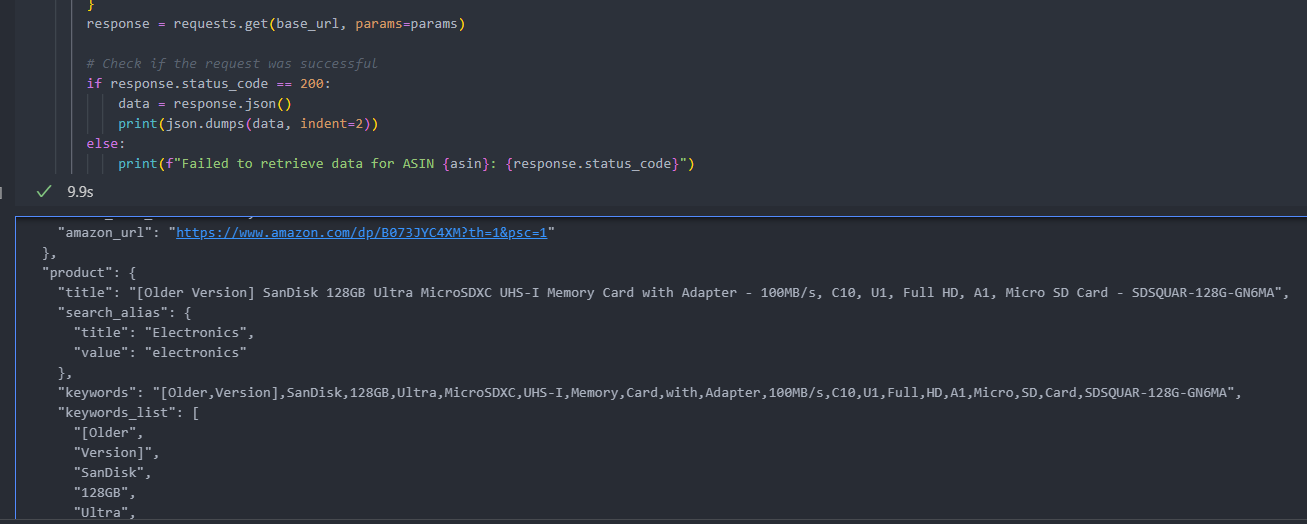
Result:
Automate Data Extraction with Dagster
Automating data retrieval is crucial in data engineering workflows. Dagster, a modern data orchestration tool, allows you to automate and schedule these tasks efficiently.
- Step 1: Install and set up Dagster in your environment.
- Step 2: Create a basic Dagster pipeline that retrieves data from an API.
- Step 3: Implement error handling and retries to ensure robust data retrieval.
- Step 4: Schedule the pipeline to run at regular intervals, ensuring data is always up-to-date.
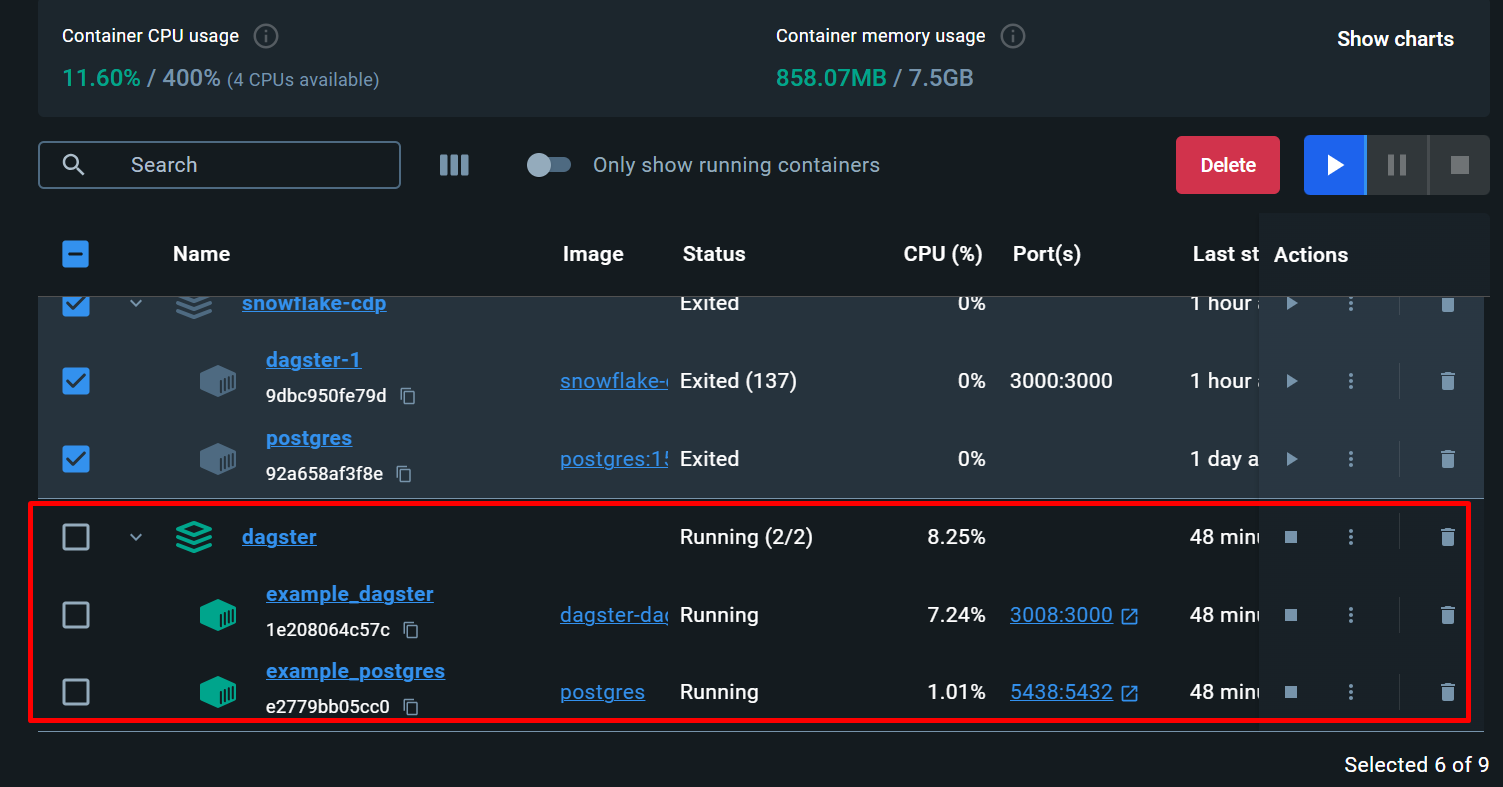
If this is not the first time you visit my blog, you can easily notice that Dagster is one of my favorite orchestration tools. I am working with Dagster every day, and this is not the first time I’m mentioning Dagster - a powerful orchestration tool. You can review the series How To Build A Data Pipeline to understand Dagster structure and setting up Dagster on Docker step by step. In this post, I will write an asset to retrieve product data from amazon.com, along with setting up a job and schedule for it. Please note that I will combine resource and assets into one.
Code example:
# Rainforest Assets
import os
import requests
import json
import pandas as pd
from dagster import asset, MetadataValue, MaterializeResult, DailyPartitionsDefinition, get_dagster_logger, AssetIn
from datetime import datetime

logger = get_dagster_logger()

@asset(
    compute_kind="python",
    partitions_def=DailyPartitionsDefinition(start_date="2024-08-01"),
    group_name="rainforest_ingestion"
)
def get_product_asin() -> list:
    # Construct the full path to asins.csv
    current_dir = os.path.dirname(os.path.abspath(__file__))
    asins_path = os.path.join(current_dir, 'asins.csv')

    # Read ASINs from the CSV file using the full path
    asins_df = pd.read_csv(asins_path)
    asins = asins_df['asin'].tolist()

    logger.info(f"Found {len(asins)} ASINs to process: {asins}")
    return asins


@asset(
    compute_kind="python",
    partitions_def=DailyPartitionsDefinition(start_date="2024-08-01"),
    group_name="rainforest_ingestion",
    ins={
        "asins": AssetIn(key="get_product_asin")
    }
)
def fetch_amazon_product_data(context, asins: list) -> MaterializeResult:
    api_key = os.getenv('RAINFOREST_API_KEY')
    base_url = 'https://api.rainforestapi.com/request'
    results = []

    # Define output directory
    current_dir = os.path.dirname(os.path.abspath(__file__))
    output_dir = os.path.join(current_dir, 'data')

    # Create output directory if it doesn't exist
    os.makedirs(output_dir, exist_ok=True)

    # Get current timestamp for filename
    timestamp = datetime.now().strftime('%Y%m%d_%H%M%S')

    for asin in asins:
        logger.info(f"Processing ASIN: {asin}")
        params = {
            'api_key': api_key,
            'type': 'product',
            'amazon_domain': 'amazon.com',
            'asin': asin
        }
        response = requests.get(base_url, params=params)

        if response.status_code == 200:
            data = response.json()
            results.append(data)

            # Save individual ASIN result
            asin_file = os.path.join(output_dir, f'{asin}_{timestamp}.json')
            with open(asin_file, 'w') as f:
                json.dump(data, f, indent=2)
            logger.info(f"Saved data for ASIN {asin} to {asin_file}")
        else:
            logger.error(f"Failed to retrieve data for ASIN {asin}: {response.status_code}")

    return MaterializeResult(
        metadata={
            "num_records": len(results),
            "preview": MetadataValue.md(json.dumps(results[:5], indent=2)),
            "data_location": MetadataValue.path(output_dir)
        }
    )
# Rainforest Job
from dagster import define_asset_job, AssetSelection
from ..assets.rainforest_asset import *
from ..assets.example_asset import *

# Define jobs for both asset sets
rainforest_job = define_asset_job(
    "rainforest_job",
    selection=AssetSelection.assets(fetch_amazon_product_data)
)

example_assets_job = define_asset_job(
    "example_assets_job",
    selection=AssetSelection.assets(example_asset, dependent_asset)
)
# Rainforest Schedule
from dagster import ScheduleDefinition
from ..jobs import rainforest_job, example_assets_job

# Define schedules
rainforest_schedule = ScheduleDefinition(
    job=rainforest_job,
    cron_schedule="0 5 * * *",  # Runs daily at 5 AM
    name="rainforest_daily_schedule"
)

example_schedule = ScheduleDefinition(
    job=example_assets_job,
    cron_schedule="0 */4 * * *",  # Runs every 4 hours
    name="example_assets_schedule"
)
Result:
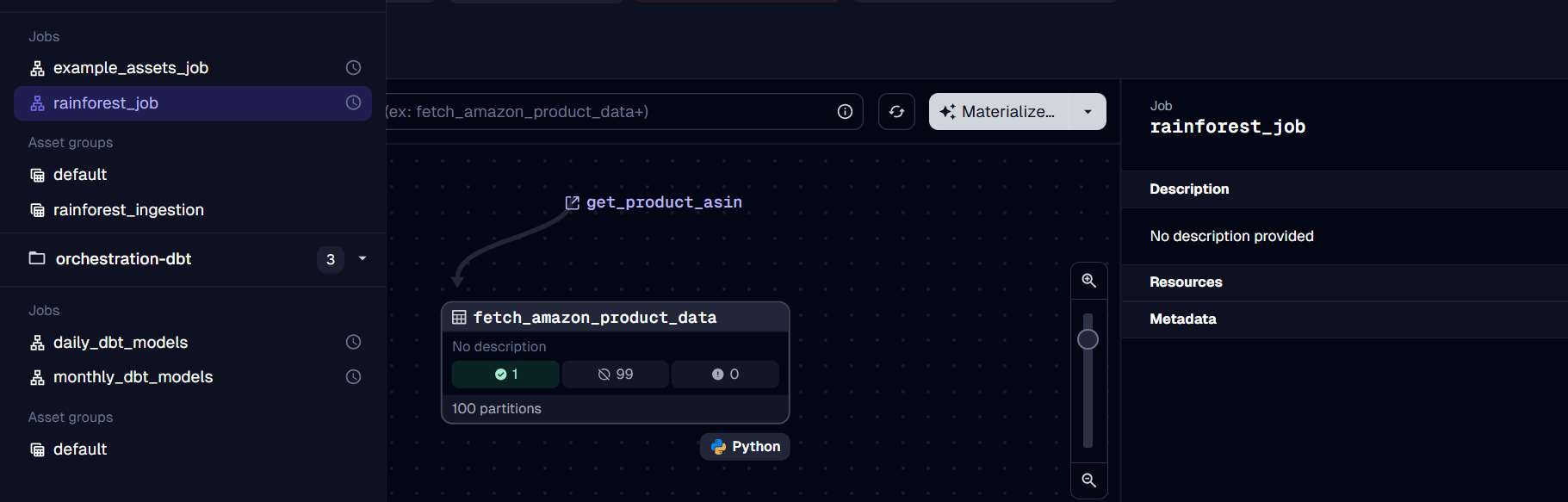
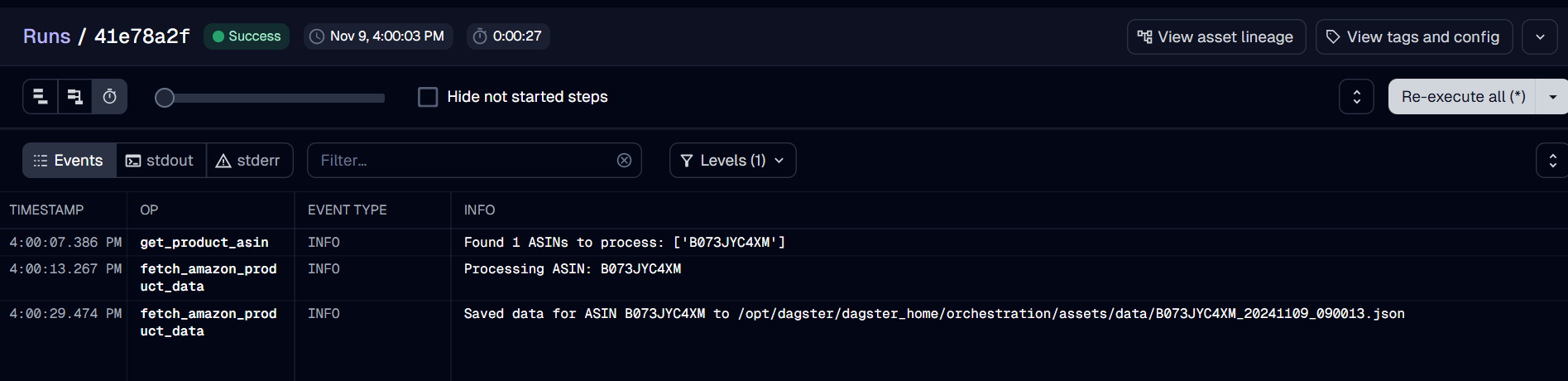
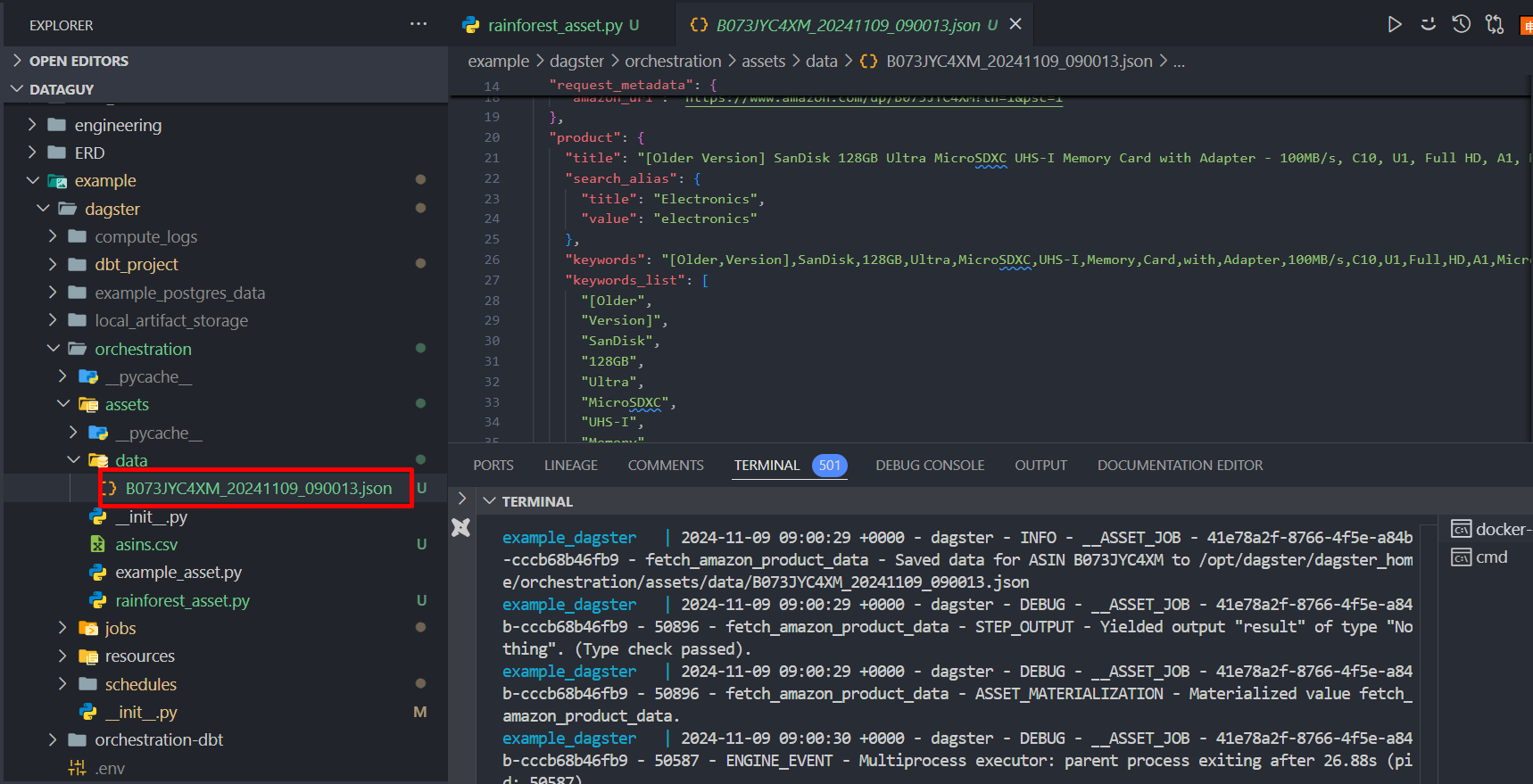
In this example, I just set up a pipeline from API to JSON file storing in local. In the series How To Build A Data Pipeline, I mentioned Dagster -> DBT -> Snowflake -> Power BI, so you need an ETL process to clean data and use them for visualization in BI tools or support AI applications. You should review the series I mentioned to sync up with this.
Build API using FastAPI
In some cases, you may need to expose data or services via your own API. FastAPI is a modern, fast (high-performance) web framework for building APIs with Python 3.7+ based on standard Python type hints.
- Step 1: Install FastAPI and Uvicorn, an ASGI server.
- Step 2: Create a simple API with FastAPI that accepts data requests and returns responses.
- Step 3: Implement basic security (e.g., API Key Authentication) and data validation.
- Step 4: Test your API endpoints using tools like Postman or directly from Python.
We can see this task as backend development. In the examples above, we mainly focus on the GET method to retrieve data. For now, we will try working with other methods to POST, UPDATE, and DELETE data. Assuming that you have built a data pipeline successfully from raw data to clean data, and now your team needs to build an AI application leveraging those datasets. As a data engineer, you have to be responsible for the backend of this application. You need to build API backend to connect with frontend so UI can show your data. In this AI application, there will be a feature called “chatbot” to respond based on information in the dataset you provide. Now, we will write API for this.
Code example:
# POST
@router.post("/thread", response_model=Thread)
async def create_thread(name: str, db: AsyncConnectionPool = Depends(get_pg_pool)):
    # Check if a thread with the same name already exists
    existing_thread = await pg_get_thread_by_name(name, db)
    if existing_thread:
        raise HTTPException(status_code=400, detail="Thread already exists")
    thread_id = str(uuid.uuid4())
    new_thread = await pg_post_thread(thread_id, name, db)
    return new_thread

# GET
@router.get("/{thread_id}", response_model=Thread)
async def get_thread(thread_id: uuid.UUID, db: AsyncConnectionPool = Depends(get_pg_pool)):
    thread = await pg_get_thread(thread_id, db)
    if not thread:
        raise HTTPException(status_code=404, detail="Thread not found")
    return thread

# PUT/PATCH
@router.patch("/{thread_name}", response_model=Thread)
async def update_thread(thread_name: str, request: ThreadUpdate, db: AsyncConnectionPool = Depends(get_pg_pool)):
    existing_thread = await pg_get_thread_by_name(thread_name, db)
    if not existing_thread:
        raise HTTPException(status_code=404, detail="Thread not found")
    if request.name:
        # Check if the new name already exists
        existing_thread_with_new_name = await pg_get_thread_by_name(request.name, db)
        if existing_thread_with_new_name:
            raise HTTPException(status_code=400, detail="Thread name already exists")
    updated_thread = await pg_update_thread_name(existing_thread.thread_id, request.name, db)
    return updated_thread

# DELETE
@router.delete("/{thread_name}", response_model=dict)
async def delete_thread(thread_name: str, db: AsyncConnectionPool = Depends(get_pg_pool)):
    existing_thread = await pg_get_thread_by_name(thread_name, db)
    if not existing_thread:
        raise HTTPException(status_code=404, detail="Thread not found")
    deleted = await pg_delete_thread(existing_thread.thread_id, db)
    if deleted:
        return {"message": "Thread deleted successfully"}
    else:
        raise HTTPException(status_code=500, detail="Error deleting thread")
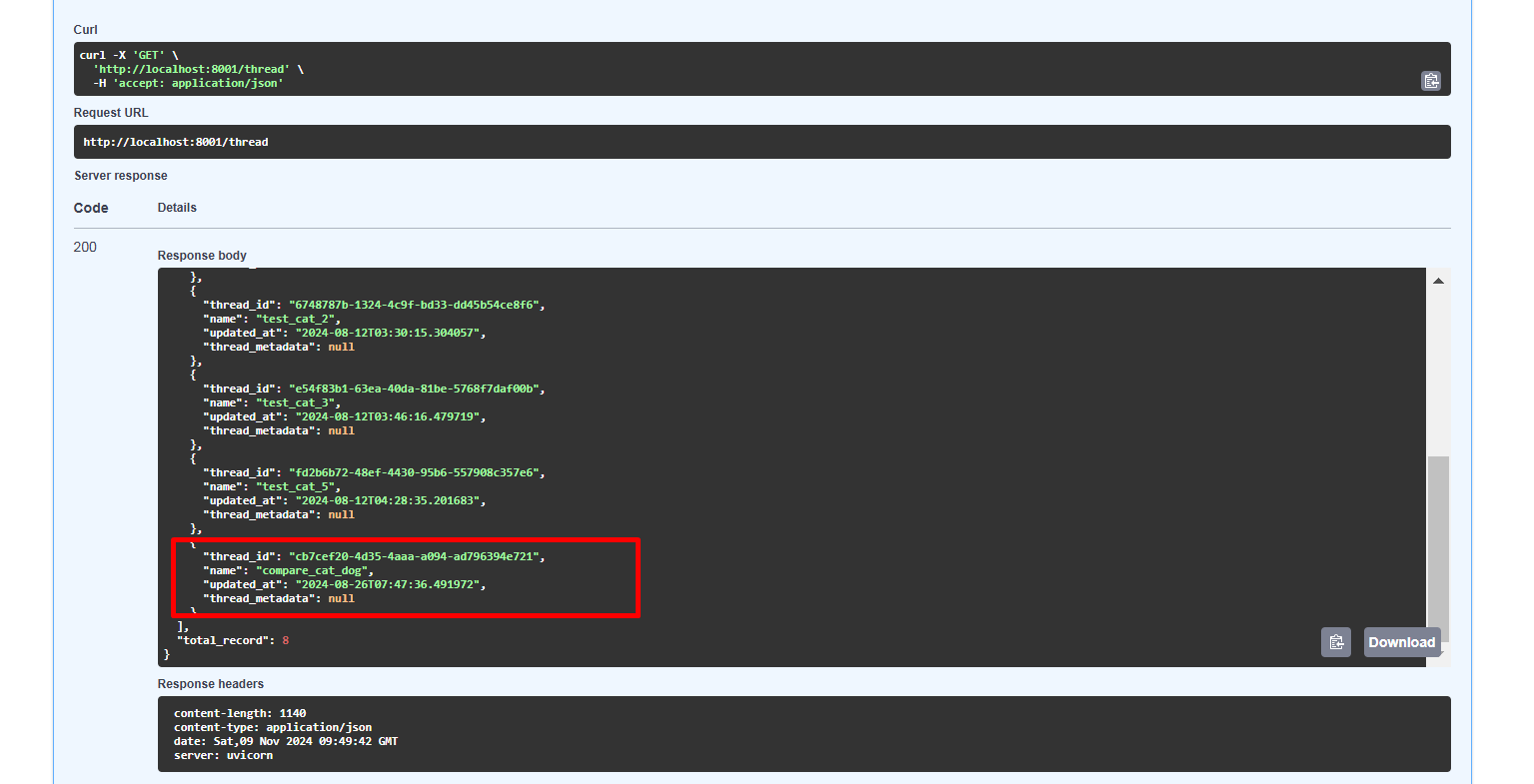
Result:
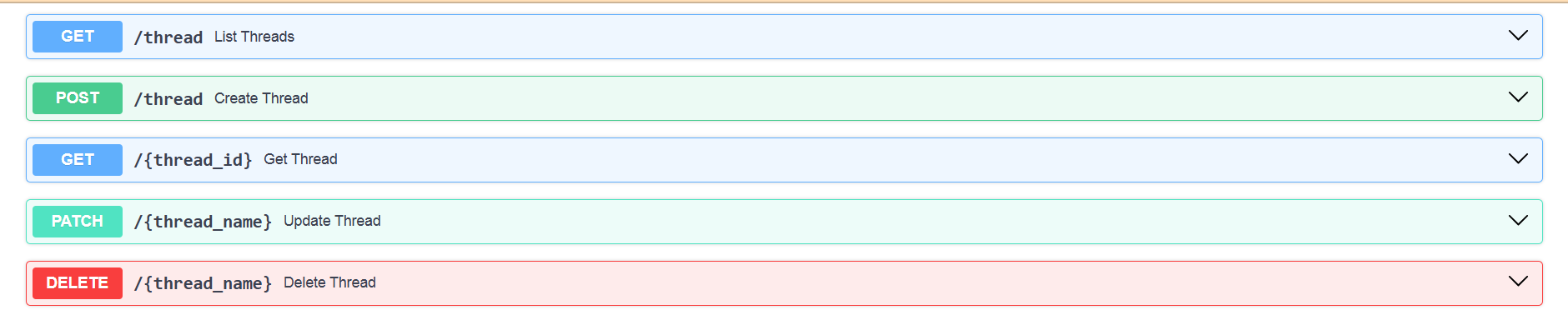
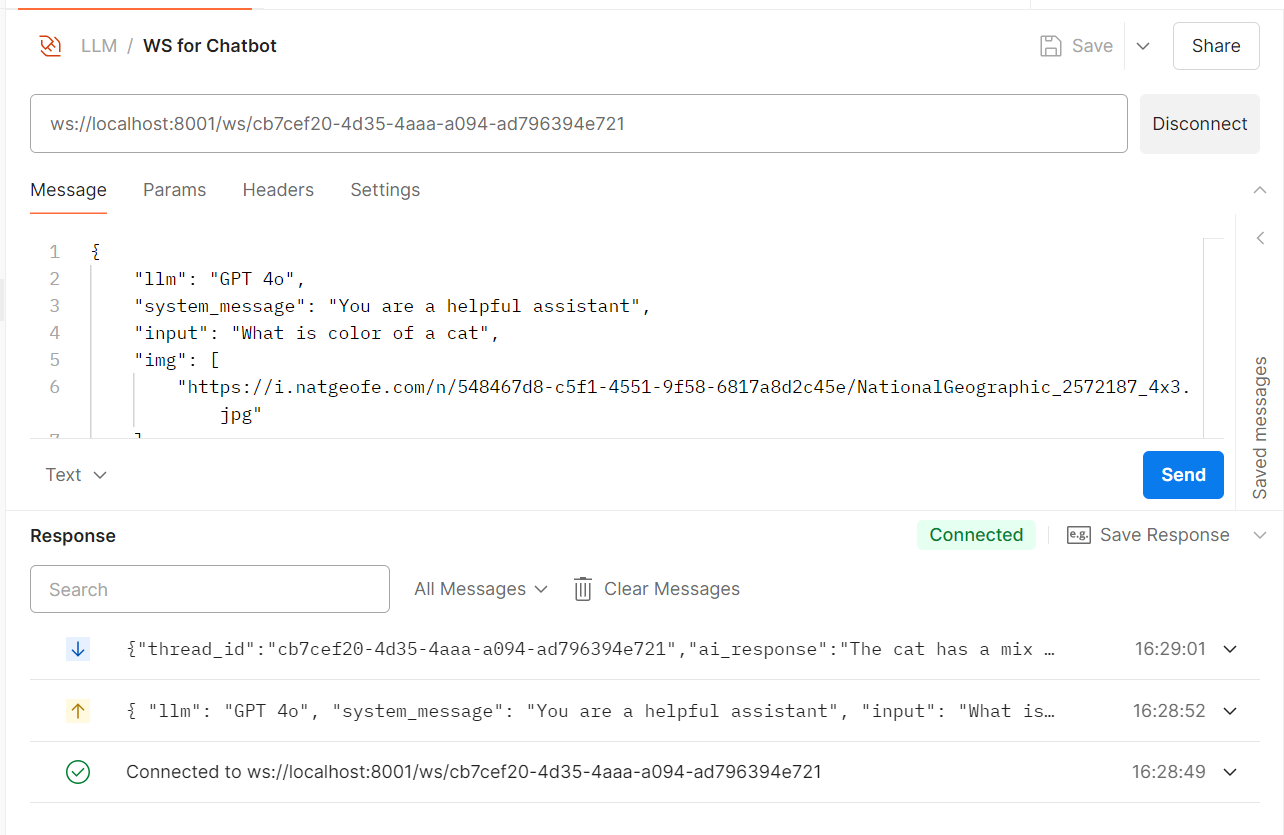
Please note that this task does not include the scope of the 2 sections above. After building full 4 methods API for thread endpoint, we can continue with websockets used to establish real-time, bidirectional communication. This is a bonus section so I won’t mention details. You can imagine the result as below (using thread_id: cb7cef20-4d35-4aaa-a094-ad796394e721)
Conclusion
In this post, we’ve walked through practical examples of retrieving data via APIs in a Jupyter Notebook, automating this process with Dagster, and creating your own API using FastAPI. Each of these tools adds a different layer of capability to your data engineering toolkit, enabling you to handle data more efficiently and securely.
In future posts, we’ll continue to explore more advanced API techniques, such as handling large datasets, dealing with rate limits, and implementing more complex security mechanisms. Stay tuned!